Xbox is testing a way to use an iPhone or Android phone as a controller for Xbox Cloud Gaming on supported smart TVs. The preview uses a QR code on the TV to open touch controls in the phone’s browser. A separate Cloud Connect test lets the Xbox Nano Controller connect to a cloud session over Wi-Fi, but Eurogamer reported on November 7 that this test is limited to the United States.
These are previews, not a universal replacement for a traditional controller. The phone option can help when a controller is not nearby, while Cloud Connect is intended to reduce input latency by changing how the Nano Controller connects. Xbox says availability and supported games or devices may be limited while it collects feedback.
Two experiments, two different use cases
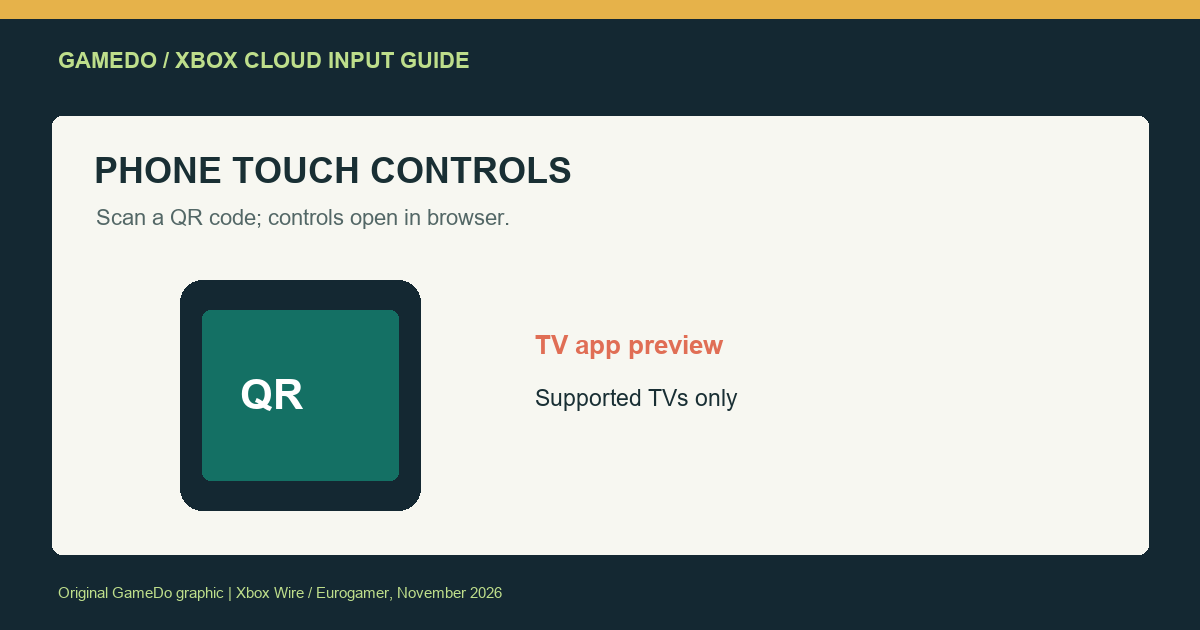
The phone-control preview targets supported smart TVs running the Xbox app. Players scan a QR code shown on the TV, then use the controls that open in a mobile browser. Xbox’s goal is practical: let someone start a cloud game when a physical controller is not immediately available. It does not mean every game will feel comfortable on a touchscreen, and it does not turn every phone into a full-featured gamepad.
Cloud Connect is different. Eurogamer says the preview allows the Xbox Nano Controller to communicate with a cloud session over Wi-Fi rather than pairing directly with the TV. The stated goal is to help reduce input latency so play feels more responsive. The test is limited to the U.S., and it requires the specific Nano Controller. It is not a general setting for any Bluetooth controller.
How to try the smart-TV phone controls
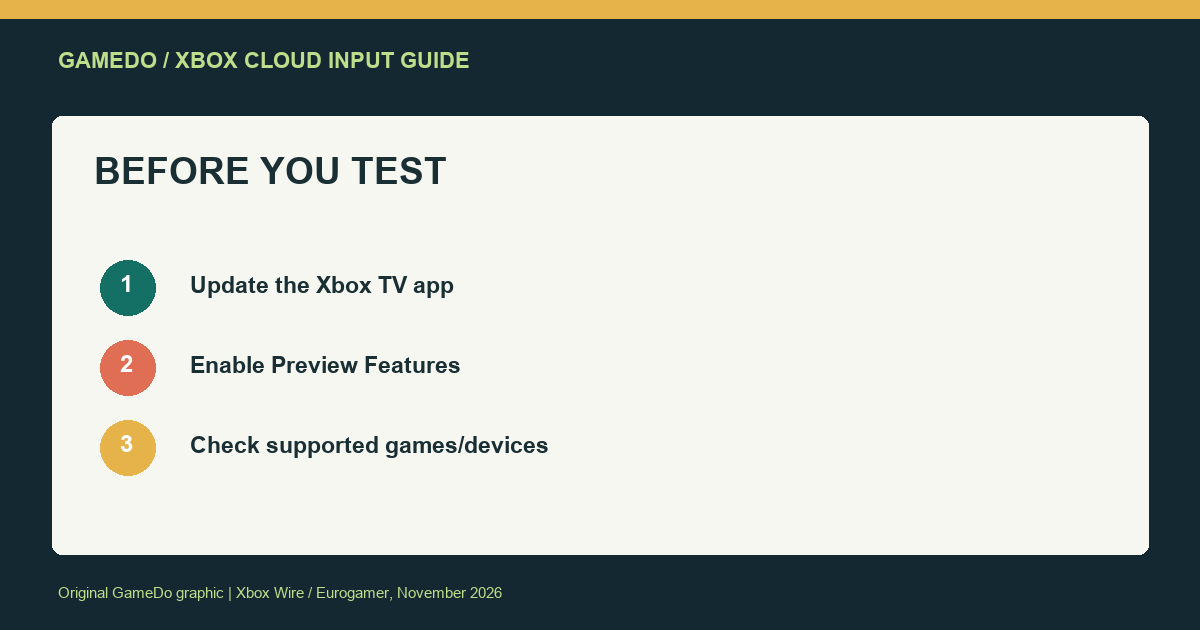
According to Xbox’s setup information as reported by Eurogamer, users should open the latest Xbox app on a supported smart TV and enable Preview Features under Settings, then Account. When a compatible cloud game is running, the app can show a QR code that the phone scans. The controls open in the phone’s browser, so the phone and TV need to stay connected and the browser session must remain available.
- Update the Xbox TV app through the device’s official app store.
- Check that the TV is supported and that Xbox Cloud Gaming is available for your account and region.
- Open Settings > Account in the app and enable Preview Features.
- Start a supported cloud game and scan the displayed QR code using your phone camera.
- Keep expectations modest: the feature is still being tested, and device or game support may be limited.
What the phone controller is good for
Touch controls can be useful for a quick test, a menu-heavy game, or a situation where a controller is in another room. They can also lower the friction for a guest who wants to try cloud gaming without pairing a new device. For games that depend on precise movement, multiple simultaneous inputs, or long sessions, a physical controller may remain more comfortable and reliable.
Phone screens vary in size, browser behavior, and touch response. The QR flow also introduces a second device that must stay awake and connected. Before a longer session, check whether the phone can remain on the controls page without locking or switching away. Consider the phone’s battery and notification interruptions as well.
Cloud Connect and latency
Cloud play already involves a round trip between a local input and a remote game session. A controller connection routed through the TV may add another step. Cloud Connect aims to let the Nano Controller communicate over Wi-Fi with the cloud session, which Xbox says may help reduce input latency. That is the stated intent of the preview, not a guarantee of a measurable improvement for every home network.
Latency also depends on the internet connection, Wi-Fi congestion, distance to service infrastructure, the TV or display, and the game itself. A new controller path cannot fix packet loss or an unstable network. If you test Cloud Connect, compare the same game and network conditions before and after enabling it rather than relying on a single impression.
Because the preview is U.S.-only, players elsewhere should not attempt to spoof a region or use unofficial firmware to access it. Availability limits are part of the test, and changing account or network location can create service or account problems. Wait for Xbox to announce broader support.
What is not confirmed
The phone-control preview does not mean all smart TVs, phones, or Xbox Cloud Gaming titles are supported. The announcement does not establish that touch controls will be available in every game or that the TV and phone interface will be identical across manufacturers. Cloud Connect is not a general Wi-Fi controller standard, and the test is tied to the Xbox Nano Controller.
Both experiences are described as tests. Xbox may adjust them based on feedback, restrict access, or change the supported device list. If a feature is missing, first check whether the app is current and whether your model is supported; do not assume your account is broken.
Who should try it?
- Try phone controls if you have a supported TV and want a quick way to test a compatible cloud game without a controller nearby.
- Try Cloud Connect if you are in the U.S., own the Xbox Nano Controller, and are comfortable testing preview software.
- Use a standard controller for games where precision, comfort, or long-session ergonomics matter.
- Wait if you need a stable, broadly supported setup or do not want to troubleshoot test features.
Bottom line
Xbox’s input previews offer two distinct ideas: browser-based phone touch controls for supported smart TVs, and a U.S.-limited Wi-Fi connection test for the Xbox Nano Controller. The former is a convenience option; the latter is aimed at improving responsiveness. Neither should be treated as a finished replacement for a standard controller.
If you test either feature, use the official Xbox app and setup guidance, check device and game support, and report specific issues through Xbox’s feedback channels. Since these are previews, availability and behavior can change. The best setup remains the one that works reliably with your device, network, and game.
Facts checked against Eurogamer’s November 7, 2026 report and the Xbox Wire preview announcement dated November 4. Feature availability may change.
Sources
- Eurogamer: Xbox is testing a way to use your phone as a controller on smart TVs (November 7, 2026).
- Xbox Wire: Preview Two New Ways to Play with Xbox Cloud Gaming (November 4, 2026).
- Xbox Support: Cloud Connect setup.
A practical way to compare the two options
If you have both a compatible phone and the Nano Controller, test one input method at a time. Begin with the phone controls in a game with simple navigation, then repeat with a physical controller on the same TV and network. For Cloud Connect, compare the Nano Controller’s usual connection with the preview path while keeping the game, network, and location consistent. Do not draw a firm conclusion from a single session; cloud latency can fluctuate as the network changes.
Write down when the input feels delayed, whether button presses are missed, and whether the issue occurs in menus, movement, or both. This makes feedback more useful to Xbox and helps distinguish controller setup problems from streaming quality. If the feature is unreliable, switch back to the standard controller connection instead of repeatedly resetting the TV or account.
Privacy and device considerations
The QR code connects the phone browser to the active TV session, so use the code shown by your own Xbox app and avoid scanning or sharing screenshots of a session code. A shared living-room TV can be convenient, but anyone with access to the paired phone page may be able to interact with that session while it remains active. Close the browser page when you finish and follow the on-screen instructions for disconnecting.
Touch controls can also cover part of the phone display and may be difficult to use for players who rely on tactile button shapes. A phone controller is an additional access method, not necessarily an accessibility substitute for a physical controller. If you need adaptive inputs, check Xbox’s supported accessibility hardware and game-specific options.
What to do when the QR code does not appear
Confirm that Preview Features is enabled in the current Xbox TV app, that the TV model is supported, and that the game is eligible for cloud play with touch controls. Restart the app once after updating it. If the option is absent after those checks, the preview may not have reached your device or account yet. Xbox’s test rollout can be limited while it gathers feedback.
For Cloud Connect, make sure the Nano Controller is on the supported firmware and use Xbox’s official setup instructions. Because this test is limited to the United States, eligibility may depend on service and account region. Do not use third-party pairing tools or firmware to force a connection.
Why this preview matters for cloud gaming
Cloud gaming has to make the whole chain feel responsive: controller input, network transport, remote processing, and the video stream returning to the screen. Improving one connection point may help, but it cannot remove every source of delay. Xbox is testing different ways to simplify access and reduce friction, and player feedback will show whether those approaches work across real living rooms rather than controlled demos.
The phone option prioritizes availability: many people already have a smartphone nearby. Cloud Connect prioritizes the input path for a particular controller. Those goals are related but not interchangeable. A casual player who needs a quick menu interaction may value the phone; someone playing a timing-sensitive game may prefer a physical controller and a stable low-latency setup.
For households that share a TV, the phone option can also make it easier to let someone try a game without asking another person to hand over a controller. That convenience depends on clear consent and an active session: the person using the phone is controlling the game, so make sure everyone knows when the session is connected. This is especially relevant if a QR code appears on a screen in a public or shared space.
Finally, remember that a phone’s browser is a touch surface, not a physical gamepad. It has no raised button edges and can be affected by notifications, incoming calls, screen dimming, or accidental gestures. Keep the phone charged, silence interruptions if appropriate, and use a standard controller whenever precise movement or long play sessions make touch input uncomfortable.
For U.S. users trying Cloud Connect, also note the difference between controller latency and stream latency. A more direct controller path may improve one part of the interaction, but the picture can still arrive late if the home network is congested or the service connection is unstable. Testing during both quiet and busy household hours can give a more realistic sense of whether the preview improves your own setup.