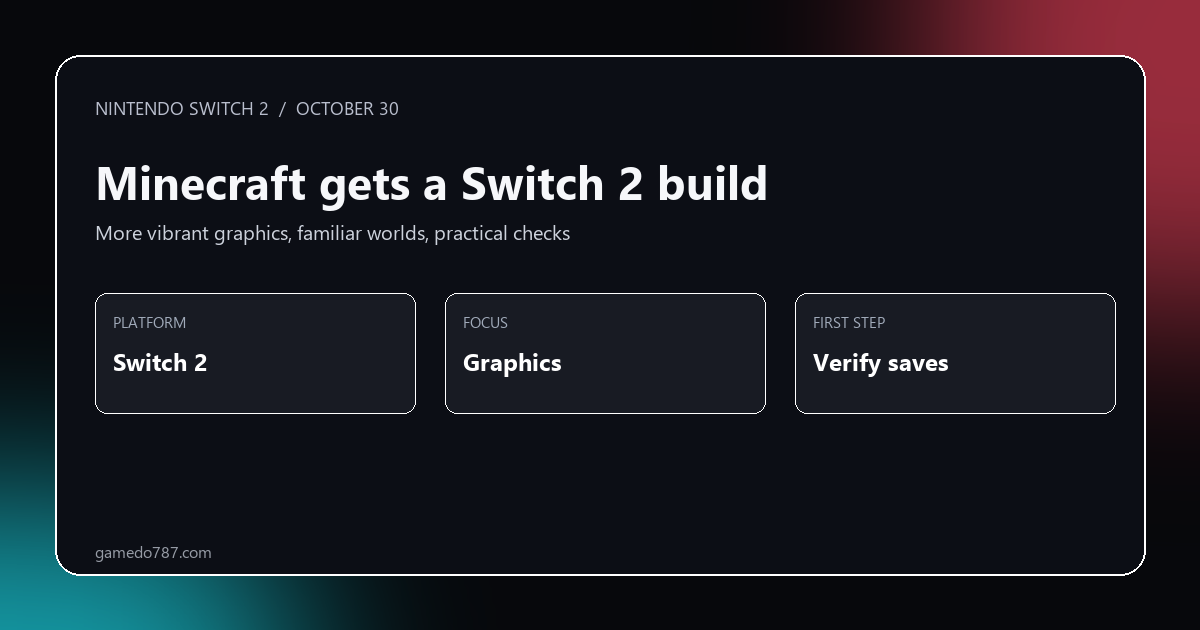
Minecraft has arrived on Nintendo Switch 2 with more vibrant graphics, giving Nintendo players a fresh version of one of gaming’s most familiar worlds. The update is a platform story rather than a new survival mode: the same mine, craft, build and explore loop now has a newer hardware target.
What the update means
Minecraft can run on a wide range of devices, but the feel of a world depends on how quickly it loads, how stable exploration is and how clearly distant terrain appears. A Switch 2 build gives Nintendo players a new place to continue familiar worlds without relearning controls or systems.
Check your edition before downloading
Before removing an older installation or moving a world, confirm which edition is attached to your Nintendo account and read the current eShop listing. Digital ownership, physical cartridges and bundles can differ when moving between hardware generations. Do not assume a save has transferred until you have opened it successfully.

Protect the worlds that matter
Launch the new version and verify one important world before changing settings or deleting the old copy. If you play with friends, check that everyone has the same version and the necessary online access. A graphics upgrade is only useful if your saves and multiplayer setup arrive with it.
Why this is a useful Switch 2 test
Minecraft is a better everyday-hardware test than a short showcase sequence. Long sightlines, fast travel and crowded builds expose performance limits naturally. If those moments feel clearer or more consistent, the improvement should show up during ordinary play, not only in a comparison video.
The phrase “more vibrant graphics” is a useful description, but it is not a complete technical specification. It does not, by itself, promise a particular frame rate, resolution, draw distance or feature parity with the PC version. Those details should be judged from the actual game build and official release notes rather than inferred from marketing language. Players comparing versions should test the same world and similar camera positions, then look for stable performance during movement as well as a sharper still image.
That distinction also helps set expectations. Minecraft’s visual identity is deliberately simple, and many players value readability and consistent controls more than effects. A brighter presentation can make terrain easier to read on a handheld screen, but the best upgrade is the one that preserves the game’s familiar pace while improving clarity. If you prefer a particular brightness or accessibility setup, revisit those options after the first launch rather than assuming the older profile copied over exactly.
Five steps for today
- Update the console system software and Minecraft.
- Confirm the edition shown for your Nintendo account.
- Open an important world and verify it loads.
- Keep storage free for patches and world growth.
- Only then remove an older installation.
- If the world uses add-ons, test a copy before replacing your main save.
- For multiplayer, ask friends to update before scheduling a session.
What “more vibrant” should—and should not—promise
The wording is a useful headline, but it is not a complete technical specification. It does not, by itself, guarantee a particular frame rate, resolution, draw distance or feature match with the PC version. Those details should be judged from the actual build and release notes rather than guessed from a marketing phrase. If you compare versions, use the same world and similar camera positions, then watch movement and transitions as well as a still screenshot.
This matters because Minecraft’s visual identity is deliberately simple. Many players value readability and consistent controls more than effects. A brighter presentation may make terrain easier to read on a handheld display, but the best upgrade is one that preserves the familiar pace while making the world clearer. Revisit brightness, text size and accessibility preferences after the first launch rather than assuming every setting carried over exactly.
World transfer is the real launch-day task
Before moving a main world, identify how it is stored. A local world, a cloud-backed world and a Realm do not necessarily follow the same transfer path. Sign in with the account that owns the world or subscription, wait for any sync to finish, and avoid deleting the original copy until the destination has opened successfully. If the world is important, make a separate backup before experimenting with packs or settings.
Players who use marketplace content or community add-ons should test a copy first. A world can open while a texture pack or other resource is missing, which is different from the world itself being lost. Keep track of the names of packs you rely on and check the in-game content menu before changing installations. For family consoles, also confirm which Nintendo account purchased the game and which profile will play it; ownership and play access can be managed separately.
Multiplayer and family-console checks
For a shared session, ask friends to update before scheduling a long build night. Version mismatches are a common source of connection trouble after a new platform build arrives. Check the displayed version in-game, verify the right profile is active and confirm that parental controls or online subscription settings are not blocking the session. These checks take less time than reinstalling a game that is already working.
| Check | Why it matters | Safe next step |
|---|---|---|
| Edition and account | Determines ownership and access | Confirm the store listing while signed into the owner account |
| World backup | Protects the only copy | Keep the old installation until the new copy opens |
| Storage and version | Prevents update and multiplayer friction | Leave free space and update friends before play |
The update is therefore best viewed as a small migration project, not simply a new icon on the home screen. Start with an unimportant world, see how it looks and performs, then open the build you care about. If anything appears missing, stop and check account, version and content ownership before making destructive changes.
Bottom line
The Switch 2 Minecraft update is a reason to revisit worlds you already built. Treat the first launch as a migration check: verify the edition, verify the saves and keep storage headroom. For another release-calendar read, see our November 2026 game calendar.


