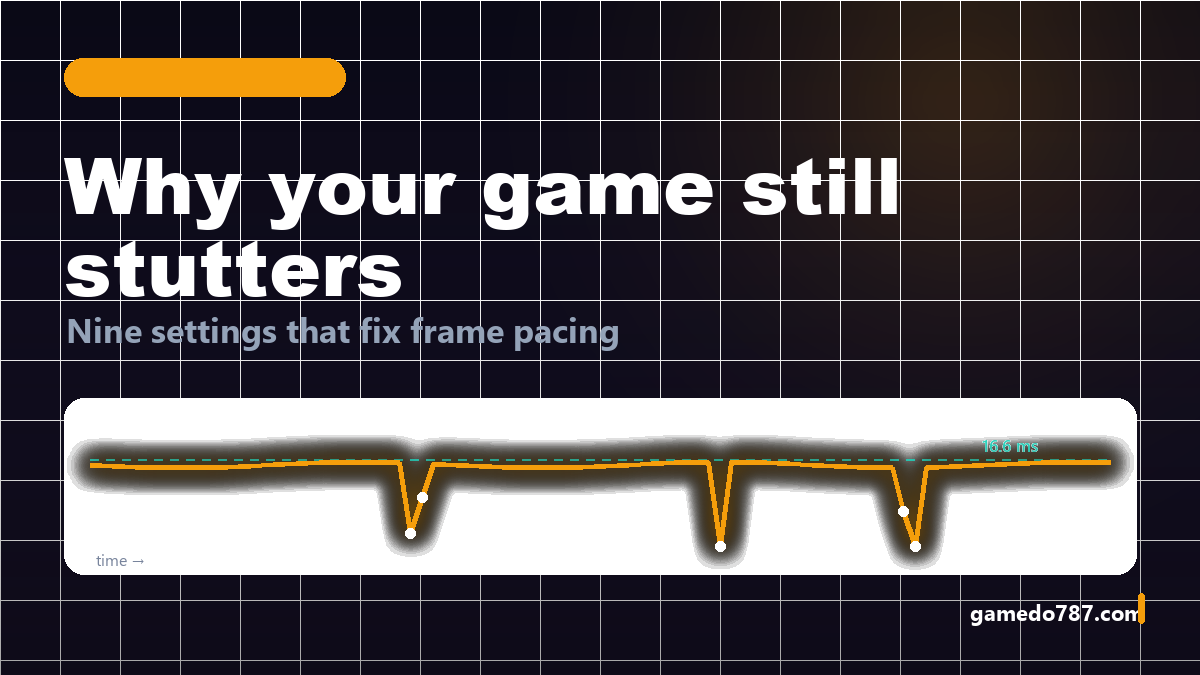
Your framerate counter says 90 fps and the game still feels like it is dragging its feet. That is not a hardware problem and it is almost never the game’s “optimisation” in the way forums claim. It is frame-time variance — a handful of frames taking three times longer than their neighbours — and it has a short, boring list of causes.
This guide is the checklist we run on a stuttering PC before anyone is allowed to buy a new graphics card. Nine fixes, in the order that costs the least time and money, plus the six “fixes” that do nothing so you can stop trying them.
The short version: cap your framerate just below your refresh rate, enable variable refresh rate, let shaders compile once instead of every session, get your RAM running at its rated speed, and kill every overlay you are not actively using. That combination resolves most stutter on most machines.
First, measure the right thing
Average fps is a marketing number. What you want is a frame-time graph, because stutter is defined by spikes, not averages.
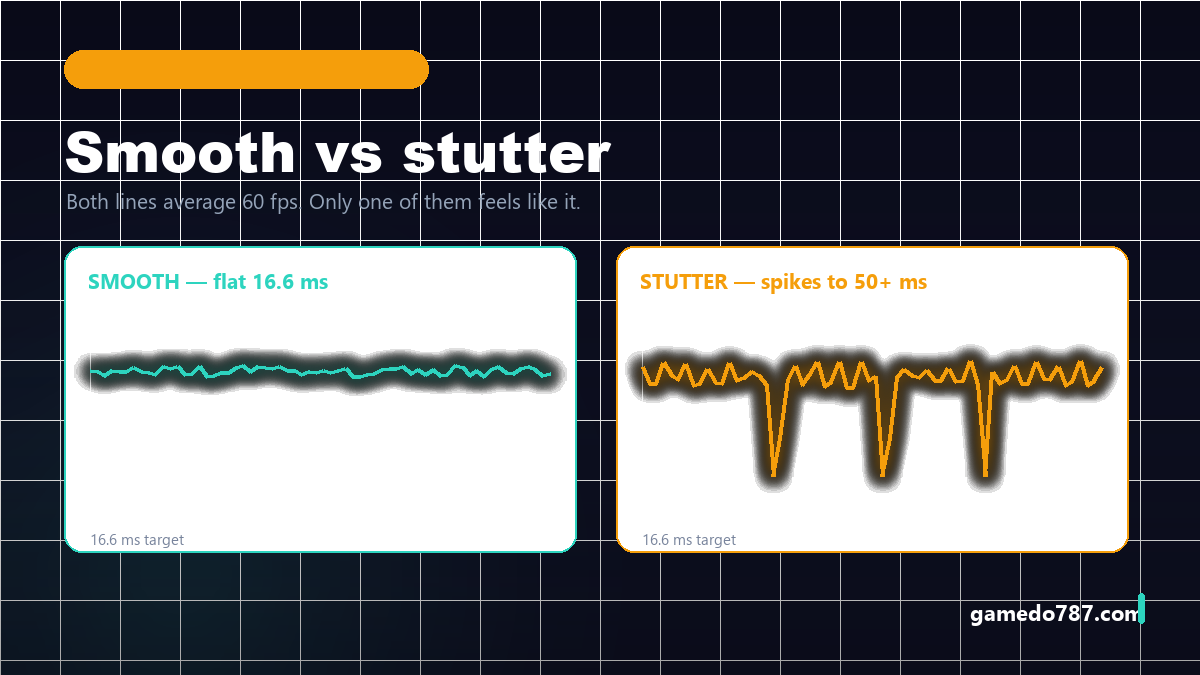
Enable your GPU vendor’s performance overlay and watch the frametime line rather than the fps number. A smooth 60 fps game draws a nearly flat line at 16.6 ms. A stuttering 60 fps game draws the same average with regular 40–60 ms spikes. Those spikes are your problem, and they are what “feels bad” actually means.
Two numbers matter when you report a stutter problem: your 1% low and your 0.1% low. If your 0.1% low is less than half your average, you have stutter. If your 0.1% low is close to your average, you do not have stutter — you have a low framerate, which is a completely different fix.
Fix 1: Cap your framerate below your refresh rate
This is the highest-value change on the list and it costs nothing. An uncapped framerate makes your GPU sprint, which pulls power, raises temperature, and pushes memory clocks to their limits — and the moment the GPU has to throttle or wait, you get a spike.
Cap a few frames below your display’s refresh rate and enable variable refresh rate (G-Sync or FreeSync) in the driver. On a 144 Hz panel, cap at 138–141 fps. On 60 Hz, cap at 58–59. The cap leaves headroom so every frame is delivered inside the VRR window instead of falling off the edge of it.
- Prefer an in-game cap over a driver cap when the game offers one — in-game caps are usually applied inside the engine’s own frame loop and behave better.
- If the game has no cap, use the driver’s frame rate limiter, not a third-party tool.
- Never stack two caps. Two limiters fighting each other produces exactly the stutter you are trying to remove.
Fix 2: Let shaders compile — once
Almost every modern game compiles shaders, and the first time a new effect appears on screen the engine has to build that shader. If it builds it during gameplay, you get a hitch at exactly the wrong moment. If it builds it during a pre-compile pass, you wait at a loading screen and then play smoothly.
That is why “it stutters for the first 20 minutes and then it is fine” is a real pattern and not your imagination. It is also why the same game can stutter again after a driver update — the shader cache is invalidated and everything gets rebuilt.
- Run the game’s pre-compilation step to completion. Do not skip it, do not alt-tab out of it.
- Do not delete your shader cache “to clean things up”. You are deleting the thing that removes stutter.
- Spinning camera around in a safe area for two minutes is still the fastest way to flush the remaining compile hitches.
- If a game ships with an option to compile shaders on the loading screen or in the background, turn it on even if it costs a little loading time.
Fix 3: Get your RAM running at its rated speed
A surprising number of “unfixable” stutter cases are a memory kit sitting at 2133 MT/s because nobody enabled the profile in the BIOS. Modern games stream assets constantly, and memory bandwidth plus memory latency feed directly into frame delivery — especially the 0.1% lows that make a game feel bad.
Reboot into the BIOS, enable XMP (Intel) or EXPO (AMD), save, and check that the kit is actually running at its advertised speed in Task Manager. If the machine refuses to POST with the profile enabled, drop one step and retest — a stable 3200 beats an unstable 3600.
Capacity matters too. 16 GB is the working minimum in 2026 and it is not enough when a browser with twenty tabs is open. When the game runs out of memory it starts paging to disk, and disk paging produces exactly the multi-hundred-millisecond spikes that no graphics setting can fix.
Fix 4: Turn off the overlays you are not using
Every overlay is a hook injected into the game’s render pipeline. Discord, the launcher’s overlay, the GPU vendor’s overlay, the recording software, the RGB controller, the anti-cheat companion, the chat app that wants to show you a notification mid-fight. Each one is cheap; five of them together are not.
Keep one overlay for measurement, disable the rest, and retest. If your 0.1% low improves by more than 15%, you found a real problem and it was not the game.
Fix 5: Windows settings that actually matter
- Power plan: set to High Performance or Ultimate Performance. Balanced parks cores and drops clocks at exactly the wrong moment.
- Hardware-accelerated GPU scheduling: on for most modern GPUs, off for some older ones. Test both; it is a two-minute experiment.
- Game Mode: on. It reduces background scheduling interference more than it hurts.
- Browser hardware acceleration: off if you keep a browser open while playing. A video playing in another tab competes for the same decode and memory bandwidth.
- Windows updates mid-session: pause them. A background download will absolutely produce a stutter pattern that looks like a driver fault.
Fix 6: Storage and asset streaming
If a game streams its world while you move through it, your drive is part of the frame pipeline. A game installed on a mechanical drive or a SATA SSD competing with other I/O will hitch when it needs an asset that is not resident yet.
- Install demanding open-world games on an NVMe drive, and keep at least 15% of it free — a full drive loses performance and write endurance.
- Do not run a large download, a backup, or a file indexer while playing a streaming-heavy game.
- If the game supports DirectStorage or a similar direct-to-GPU asset path, enable it.
Fix 7: Frame generation is not a stutter fix
Upscaling and frame generation raise the number on the counter, and neither one fixes frame pacing. Frame generation in particular needs a stable base framerate to work with: it interpolates between frames, so a 30 ms spike becomes a 60 ms smear. Turning it on in a game that already stutters usually makes the experience worse while making the counter look better.
The rule: fix the base framerate first, enable frame generation last, and only when your 1% lows are already acceptable without it.
Fix 8: Driver hygiene
Install the vendor driver cleanly once, then leave it alone unless a specific game demands an update. Constant driver swapping invalidates shader caches and resets per-game profiles, which reintroduces stutter in games that were previously fine.
If you do update, verify two things afterwards: that Resizable BAR (or Smart Access Memory) is still enabled, and that your per-game V-Sync and frame-cap settings survived. Both are commonly reset by a driver install, and both affect frame pacing directly.
Fix 9: The engine-level tweaks worth knowing
- Try the other API. Some games run noticeably smoother on DX11 than DX12, or on Vulkan than DX12. It takes two minutes to test.
- Reduce volumetric fog and shadow distance first. They cost more per frame than almost any other setting and produce the biggest spikes when they are maxed out.
- Disable ray tracing before you disable everything else. Ray-traced effects are the most common cause of severe frame-time variance on mid-range GPUs.
- Cap the game’s background framerate if it has one — an uncapped menu screen can push a GPU to 100% while you are not even playing.
The six “fixes” that do nothing
| Popular advice | Reality |
|---|---|
| Deleting the shader cache | Directly causes the stutter you are trying to fix |
| “Registry cleaners” and tweak utilities | No measurable effect on frame pacing; some break driver settings |
| Disabling the page file | Turns a slowdown into a crash when memory runs out |
| Setting every NVIDIA Control Panel option to “Prefer maximum performance” | Raises temperatures and can trigger thermal throttling spikes |
| Overclocking to “brute force” past stutter | An unstable overclock is one of the most common sources of micro-stutter |
| Reinstalling Windows | Usually re-creates the exact same configuration and the exact same stutter |
Quick checklist
| Order | Action | Time | Expected gain |
|---|---|---|---|
| 1 | Cap fps just below refresh rate, enable VRR | 2 min | Large |
| 2 | Finish shader pre-compilation, keep the cache | 5–20 min | Large |
| 3 | Enable XMP/EXPO, check RAM usage in game | 10 min | Large |
| 4 | Disable all but one overlay | 5 min | Medium |
| 5 | Power plan, Game Mode, HAGS test | 10 min | Medium |
| 6 | Move the game to NVMe, free up space | 20 min | Medium |
| 7 | Turn frame generation off until base fps is stable | 1 min | Medium |
| 8 | Clean driver reinstall, re-check ReBAR | 20 min | Small–medium |
| 9 | API swap, volumetric and shadow settings | 10 min | Small–medium |
Frequently asked questions
Why does my game stutter only when I move the mouse?
That is usually a polling-rate or driver-level input issue rather than a rendering one. Drop an 8000 Hz mouse to 1000 Hz and retest — high polling rates overload some CPUs and produce a hitch pattern that tracks your mouse movement exactly.
Does more VRAM fix stutter?
Only if you are running out of it. If the game is spilling textures to system memory, the stutter is severe and obvious in the overlay. If VRAM usage sits comfortably below capacity, a bigger card changes nothing.
Is stutter always the developer’s fault?
No. Some games ship with genuine traversal stutter that no setting fixes, and the honest answer there is to wait for patches. But the majority of reported stutter happens on machines with an uncapped framerate, a disabled memory profile and five overlays running.
Should I use a third-party optimisation tool?
Not for frame pacing. The settings that matter are in the game, the driver and the BIOS, and every one of them is a documented option you can change yourself in under ten minutes.
The bottom line
Stutter is a measurement problem before it is a hardware problem. Get a frame-time graph in front of you, confirm whether your 0.1% lows are actually broken, and then work the list from cheapest to most expensive. Nine times out of ten the fix costs nothing but ten minutes of settings — and the upgrade you were about to buy would not have solved it.
If you are working out which games deserve your drive space in the first place, our breakdown of the GTA 6 preload and storage requirements is a good place to start planning.